
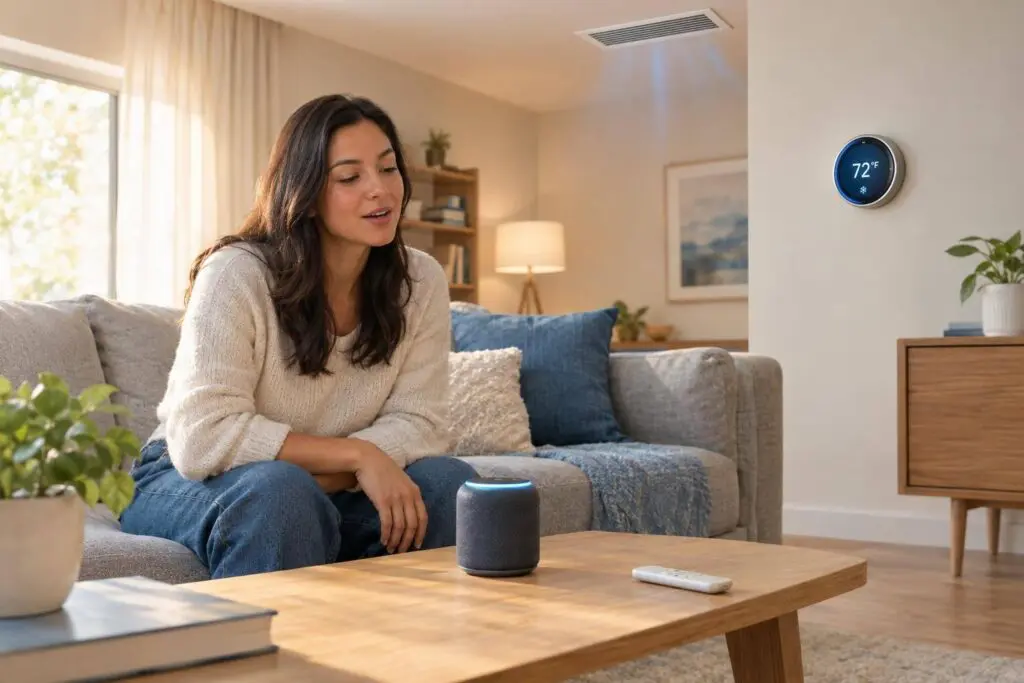
You can control your AC by voice – but you need a compatible thermostat, not just a smart speaker. I recommend checking your HVAC wiring and thermostat support before buying, then testing a command like “Set Upstairs Thermostat to 75°F.”
Here’s what I check before relying on voice control:
- Setup: Confirm smart thermostat installation compatibility, power needs, Wi-Fi, and assistant support. Turn off power before inspecting wiring.
- Commands: Link the accounts, name each thermostat clearly, and test temperature, mode, and off commands separately.
- Privacy: Review microphone settings, stored recordings, and household access in both services.
- Backup controls: Keep the wall thermostat and app ready when speech fails.
- Troubleshooting: Test direct control first, confirm cooling settings, and allow for the compressor’s protection delay.
My bottom line: <u>an accepted voice command does not prove the AC is cooling.</u> Voice control changes settings; it doesn’t repair equipment. If cooling still fails after safe checks, I recommend a thermostat or AC diagnosis.
Voice Control Setup and Commands
Connecting the Thermostat to Your Voice Assistant
Finish setup in the thermostat app first. Connect the thermostat to Wi-Fi, sign in to the manufacturer account, and confirm you can change a setting in the app before linking voice control.
Next, link the thermostat through your assistant app’s setup flow. Some models need a manufacturer skill or linked account; others pair directly. Follow the manufacturer’s current instructions, since menus and pairing steps vary by model.
Choose short, distinct device names so the assistant is less likely to target the wrong unit. Assign the correct room in the assistant app, then check that the intended thermostat appears. A room name only organizes the device – it does not create a separate HVAC zone. For homes requiring complex zoning or professional cooling services, consulting a technician is recommended.
Once linked, check voice control. Start with a temperature readout, then test setpoint, mode, and off commands.
Voice Commands to Test
Test temperature readings, setpoints, mode changes, and off commands separately before relying on voice control. Use your assistant’s wake word and supported wording.
- Read temperature: “What is the indoor temperature?”
- Set temperature: “Set Upstairs Thermostat to 75 degrees.”
- Change mode: “Set Reception Thermostat to cool mode.”
- Turn off: “Turn the thermostat off.”
Changing the setpoint does not necessarily change the operating mode. Likewise, selecting cool mode does not necessarily change the target temperature. The off command stops the thermostat’s heating and cooling calls.
After each command, check the thermostat display or manufacturer app to confirm the intended change. If you have multiple thermostats, use the full device name instead of a general command. Restore your desired mode after testing off control, and wait several minutes before repeating a command – compressor protection can delay a response.
Make your Thermostat more Accessible with Voice Commands!
Privacy and Account Settings
After linking voice control, review both accounts – not just the thermostat app. These settings control who can issue commands and what data those commands leave behind. The voice assistant may store recordings and transcripts. The thermostat provider may keep temperature changes, device status, and account activity. Deleting data from one service doesn’t necessarily remove it from the other.
Use strong passwords that differ for each account, and turn on multifactor authentication wherever it’s available. Keep recovery codes secure. After replacing a phone or changing households, remove old devices and sessions. In both apps, check owner, administrator, guest, and household member access. Remove former residents, contractors, roommates, and unused profiles.
Microphone and Data Controls
The settings below have the most effect on privacy and shared access. Check both services, since setting names and available options vary by device and account.
| Control | Privacy or Access Effect |
|---|---|
| Microphone muting | Stops that device from hearing commands. |
| Recording-history deletion | Deletes stored assistant recordings or transcripts. |
| Automatic retention | Limits how long assistant history is stored. |
| Linked accounts | Creates a data-sharing link between the thermostat service and voice assistant. |
| Household members | Lets authorized members change settings. |
| Third-party integrations | Lets other services access thermostat controls. |
| Location settings | Uses location data for automations. |
| Personalization settings | Uses account activity to tailor responses. |
| Activity settings | Controls storage and use of assistant interactions. |
Muting the microphone doesn’t necessarily block other access. Someone may still control the thermostat through an app, the web, or another linked device. Deleting recordings or changing retention settings may also leave voice recognition settings and thermostat-provider logs unchanged.
For Alexa, check recordings, transcripts, and typed requests in Alexa Privacy settings. Amazon lists automatic deletion options of 3 months or 18 months, plus an option not to save voice recordings. For Google Assistant, review eligible interactions in Google My Activity or the Nest app, depending on the product. Check whether retention changes cover past recordings, future recordings, or both.
Review access again after moving, replacing devices, transferring accounts, or ending shared access. If commands stop working, check the connection before changing settings again.
Troubleshooting Voice Control
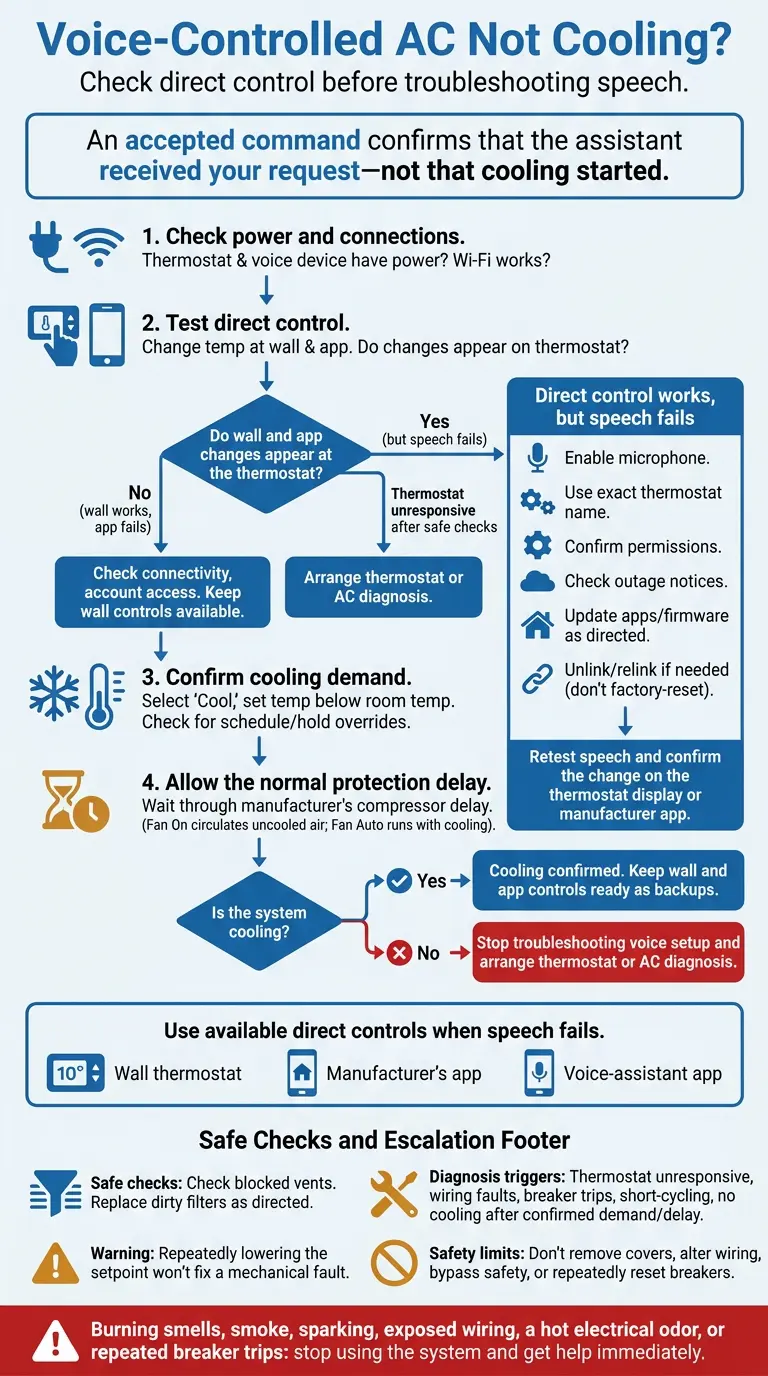
Voice-Controlled AC Not Cooling? Troubleshooting Flowchart
If the assistant responds but the AC doesn’t cool, start with these checks. They help you tell a voice-control problem from an AC problem.
Connection Checks to Try First
- Check power and connections: Make sure the thermostat display and voice device have power. Replace thermostat batteries as the manufacturer directs. Test another connected device to confirm that the required Wi-Fi and internet connections work.
- Test direct control: Change the temperature at the thermostat, then through the manufacturer’s app. Check whether each change appears at the thermostat.
- Review cooling settings: Select Cool, set the temperature below room temperature, and check that a schedule, vacation setting, or hold isn’t overriding the change.
- Check the voice command and access: Make sure the microphone is enabled. Use the exact thermostat name shown in the assistant app, and avoid duplicate device names. Confirm the correct home, household member authorization, and permission to control the device.
- Check service and software: Look for outage notices from the thermostat provider and voice-assistant service. Update the thermostat app, voice-assistant app, and thermostat firmware only as the manufacturer directs.
- Reconnect if needed: Unlink and relink the thermostat integration, then restart the router and thermostat. Don’t factory-reset the system unless the manufacturer specifically recommends it.
If the thermostat and app work but speech doesn’t, focus on the voice integration. An accepted command confirms that the assistant received your request – not that cooling started. Wait through the manufacturer’s normal compressor protection delay before testing again. Fan On can circulate uncooled air between cycles; Fan Auto generally runs during active cooling.
When voice input fails, use the backup controls below.
Cooling Controls That Do Not Require Speech
Use the wall controls, manufacturer’s app, or voice-assistant app to adjust cooling without speaking. Hands-free control is convenient, but direct controls give you another way to make changes when speech fails.
| Control method | Availability | Privacy impact | Internet dependence | Voice-recognition dependence |
|---|---|---|---|---|
| Voice Commands | Works when the assistant, microphone, account, integration, and internet service work | Requires microphone access and may store activity | Usually depends on Wi-Fi and internet-based services | High |
| Thermostat Controls | Available at the wall unit when it has power and responds | No spoken interaction required | Basic local control often works without connectivity, depending on the model | None |
| Mobile-App Control | Allows remote changes or control when the speaker cannot hear clearly | Requires an app, account, permissions, and device access | Commonly depends on Wi-Fi, internet, and cloud service availability | None |
| Scheduled Automation | Makes programmed temperature changes without repeated commands | Uses stored schedules and may use presence or location features | Offline operation varies by model; check the manufacturer’s specifications | None |
If wall control works but speech fails, the voice-assistant link or microphone setting is likely at fault. If basic checks don’t restore cooling, stop troubleshooting the voice setup and move to mechanical diagnosis.
When to Call for AC Diagnosis
After DIY AC troubleshooting checks, call for diagnosis if the thermostat remains unresponsive, you suspect wiring faults, the breaker trips again, or the system short-cycles. Also call if there’s no cooling after you confirm cooling demand and wait through the normal protection delay.
Check for blocked vents. If the filter is visibly dirty, replace it with the correct type according to the manufacturer’s instructions. Repeatedly lowering the setpoint won’t fix a mechanical fault. Don’t remove thermostat covers, alter wiring, bypass safety controls, or repeatedly reset a tripped breaker.
If cooling demand is confirmed but the home still doesn’t cool, the fault is in the HVAC system rather than the voice setup. For burning smells, smoke, sparking, exposed wiring, a hot electrical odor, or repeated breaker trips, stop using the system and get help immediately.
Eco Temp HVAC provides AC repair, maintenance, and 24/7 HVAC service in Chicagoland, including Chicago, St. Charles, Bartlett, Lemont, Downers Grove, and Palatine.
Conclusion: Check Compatibility and Keep Backup Controls
Check compatibility before installation. Then link your accounts, give each device a distinct name, and use only supported commands.
Voice control adds convenience, but keep the wall thermostat and app ready as backups. Review microphone access, stored activity, and household permissions, too.
Voice control doesn’t fix equipment problems. If only speech commands fail, check the voice connection. If the thermostat accepts changes but cooling never starts, schedule a diagnosis to find why your AC is not cooling.
For wiring questions or unresolved cooling problems in Chicagoland, contact Eco Temp HVAC.
FAQs
How do I check voice-control compatibility with my central AC?
Before buying a Wi-Fi-enabled smart thermostat, use the manufacturer’s online compatibility tools to check whether it works with your HVAC system. Confirm that your setup has a common wire (C-wire) to provide reliable power and support voice-controlled operation.
In Chicagoland, Eco Temp HVAC offers professional consultations to assess your system and help connect it with voice-control technology.
Can I limit who changes my AC settings by voice?
Yes. Many smart systems let you create separate voice profiles to tell users apart and control who can change your AC settings. Keep your device’s firmware up to date and connect your smart thermostat to a secure, private home network.
Need help with security settings or choosing a thermostat with advanced access features? Eco Temp HVAC offers installation and consultation throughout Chicagoland.
Will my AC schedule still work if voice control fails?
Yes. Your smart thermostat stores programmed schedules on the device, so your AC schedule will keep running even if Wi-Fi or voice control stops working. You can still change settings with the thermostat’s physical controls or use the manufacturer’s mobile app when connected.
If you need help with connectivity or scheduling, Eco Temp HVAC offers professional support for homeowners throughout Chicagoland.