
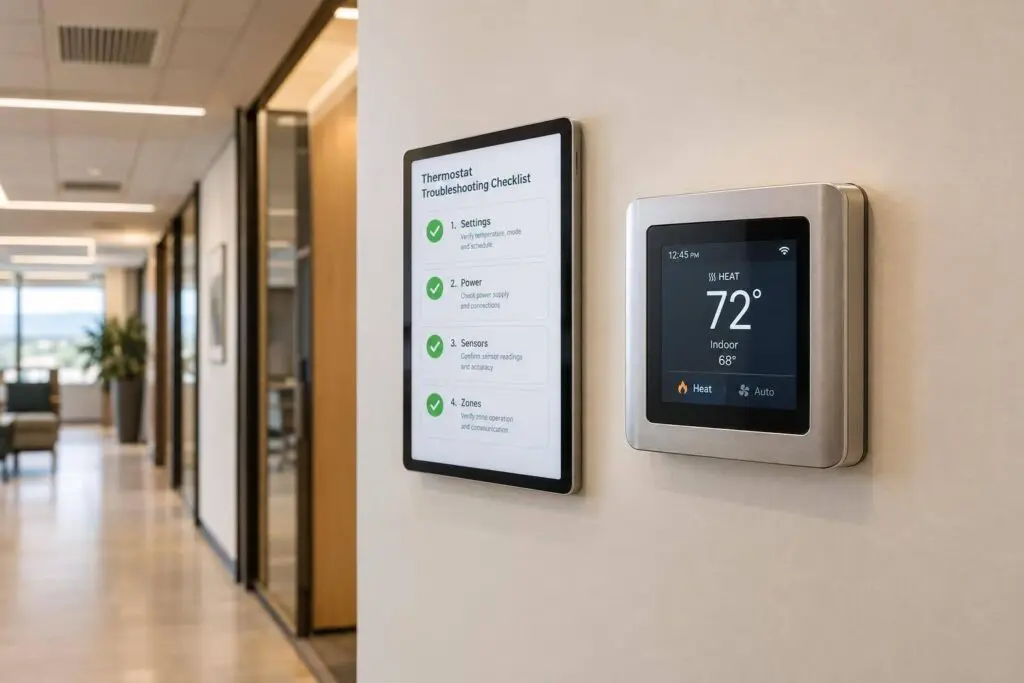
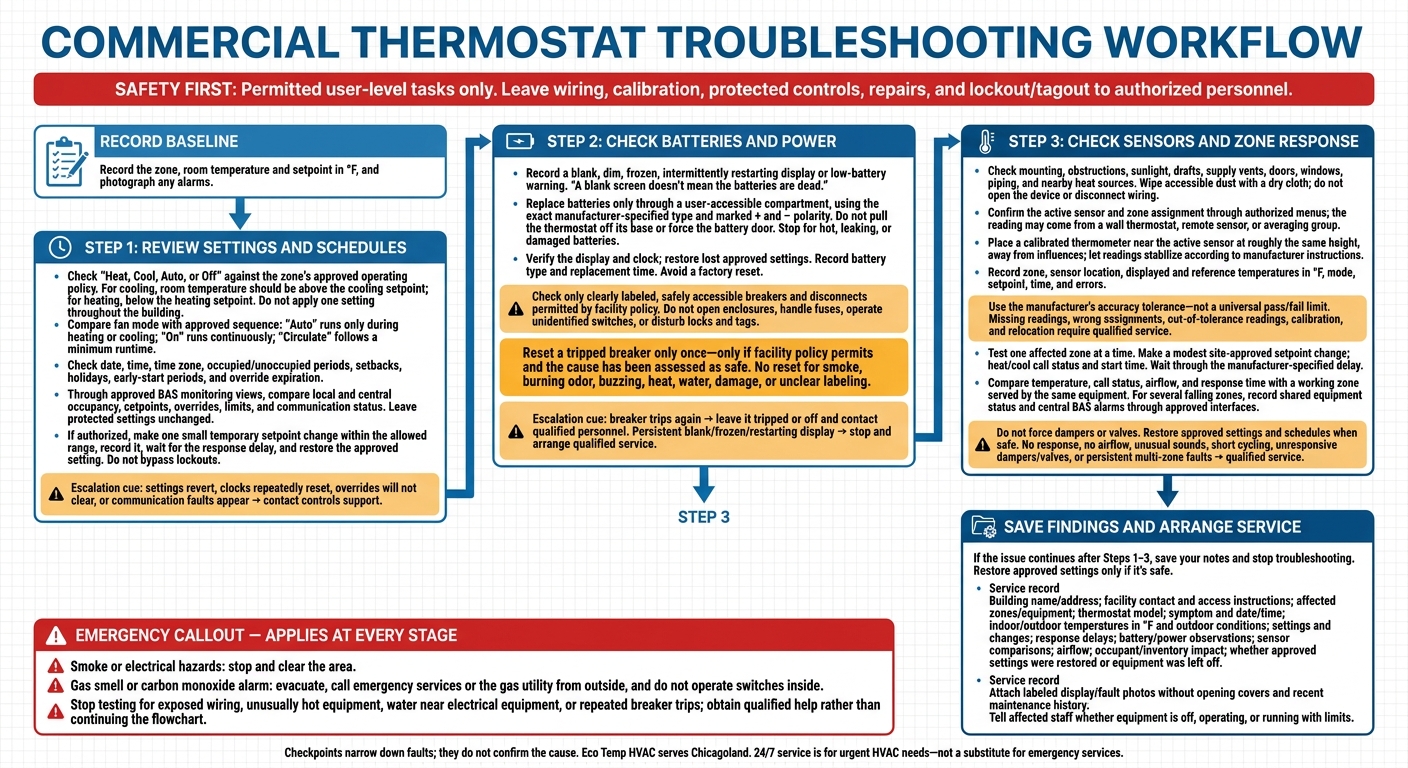
I start commercial thermostat troubleshooting with 3 checks: settings, power, and sensor readings. Before changing anything, I record the zone, room temperature and setpoint in °F, and photograph any alarms.
Here’s the order I follow:
- Settings: Check the mode, fan setting, clock, schedule, and BAS overrides.
- Power: Check the display, user-accessible batteries, and clearly labeled power controls. Reset a tripped breaker only once, if facility policy permits and it’s safe.
- Sensors and zone response: Compare readings with a calibrated thermometer, use the manufacturer’s tolerance, and test one zone at a time through approved controls.
<u>I keep checks to permitted user-level tasks.</u> I leave wiring, calibration, and protected controls to qualified personnel. For smoke or electrical hazards, I stop and clear the area; for a gas smell or carbon monoxide alarm, I evacuate and call from outside.
If the problem remains, I restore approved settings only when safe, save the findings, and arrange service. Eco Temp HVAC serves Chicagoland, with 24/7 emergency HVAC services for urgent needs – not a substitute for emergency services.
Commercial Thermostat Troubleshooting Checklist
Commercial AC Thermostat Troubleshooting
sbb-itb-b5c10b1
Step 1: Review Settings and Schedules
Once you’ve recorded the baseline, check the thermostat’s mode and schedule before checking power or equipment. Leave protected BAS settings unchanged.
Check Mode, Setpoint, and Fan Settings
Check whether Heat, Cool, Auto, or Off matches the zone’s approved operating policy. For cooling, room temperature should be above the cooling setpoint. For heating, it should be below the heating setpoint. Check both setpoints in °F if they’re displayed. Offices, server rooms, storage areas, and other spaces with special requirements may have different approved limits for commercial HVAC systems. Don’t apply one setting throughout the building.
Compare the fan mode with the approved fan sequence. Auto runs only during heating or cooling, On runs continuously, and Circulate follows a minimum runtime. If you’re authorized, make one small, temporary setpoint change within the allowed range. Record it, wait for the response delay, then restore the approved setting. Don’t keep changing the setpoint or bypass a lockout.
If the mode is correct but the system still doesn’t respond, check the clock and schedule next.
Check Business Hours and Schedule Overrides
Compare the displayed date, time, and time zone with the actual clock. Check occupied and unoccupied periods, setbacks, holiday exceptions, and early-start periods against business hours, cleaning, and deliveries. Look for Hold, Temporary Override, Occupied, Unoccupied, Next Event, or an expiration time. Before editing anything, verify the current override status and when it expires.
In the BAS monitoring view, compare local and central occupancy status, setpoints, overrides, limits, and communication status. Contact controls support if settings revert unexpectedly, clocks reset repeatedly, an override won’t clear, or a communication fault appears. Leave protected schedules, alarms, and control sequences untouched.
Step 2: Check Batteries and Power
If Step 1 didn’t solve the problem, check the thermostat’s power supply or batteries. When the settings are correct but the thermostat doesn’t respond, lost power or failed batteries may be the cause.
Check only what you can safely access and facility policy allows. Do not remove electrical panel covers, inspect wiring, or open equipment controls.
Check the Display and Batteries
Record whether the display is blank, dim, frozen, restarting intermittently, or showing a low-battery warning. A blank screen doesn’t mean the batteries are dead – control power may be missing.
Replace batteries only through a user-accessible compartment. Use the exact type specified on the thermostat or in the manufacturer’s instructions, and follow the marked + and − polarity. Do not pull the thermostat off its base or force the battery door. Stop if the batteries are hot, leaking, or damaged.
After replacing the batteries, check that the display works normally. Verify the clock and restore any lost settings. Avoid a factory reset, which can erase programmed settings. Record the battery type and replacement time. If the display stays blank or frozen, or keeps restarting, stop and arrange qualified air conditioning repair service.
Check Breaker and Disconnect Status
Check only clearly labeled breakers and disconnects from a dry, unobstructed location you can safely access. Compare the labels with facility equipment records. The indoor unit, outdoor unit, and controls may have separate power supplies.
Do not open disconnect enclosures, handle fuses, or operate unidentified switches. Leave maintenance locks and tags untouched.
Reset a tripped breaker only once, and only when facility policy permits it and the cause has been assessed as safe. Follow the site or manufacturer’s procedure. Do not reset it if there is smoke, a burning odor, buzzing, heat, water, damage, or unclear labeling.
If the breaker trips again, leave it tripped or off and contact qualified personnel. Record the breaker label, position, reset time, and result. Leave wiring, fuse, and controller checks to qualified personnel.
If power is normal and the thermostat still doesn’t respond, move to sensor and zone response checks.
Step 3: Check Sensors and Zone Response
If settings and power are correct, check whether the thermostat reads the intended space and whether the zone responds.
Check Sensor Location and Temperature Readings
Make sure the thermostat or sensor is securely mounted and isn’t blocked. Look for sunlight, drafts, nearby supply vents, exterior doors, windows, furnace or boiler piping, and other heat sources that could affect its reading. Wipe accessible dust with a dry cloth. Do not open the device or disconnect wiring. Use authorized thermostat, BAS, or zone-controller menus to confirm the active sensor and its zone assignment. The displayed temperature may come from a wall thermostat, remote sensor, or averaging group.
Place a calibrated thermometer near the active sensor at roughly the same height. Keep it away from drafts, sunlight, people, electronics, and supply registers. Let both readings stabilize according to the manufacturer’s instructions.
Record the zone name, sensor location, displayed temperature, reference temperature, mode (heat, cool, or idle), setpoint, time, and any error message. Use °F for temperatures, and compare the reference reading with the room temperature recorded in the introduction. Use the manufacturer’s accuracy tolerance – not a universal pass/fail limit. Missing readings, wrong assignments, or differences beyond that tolerance require qualified service. Calibration or sensor relocation also requires qualified service.
If the reading falls outside tolerance, move to zone response testing.
Test Zone Response and Airflow
Test one affected zone at a time. Make a modest, site-approved setpoint change to request heating or cooling. Record the zone, setpoint, displayed temperature, call for heat/cool status, time the call began, and any visible status indicator.
Wait through the manufacturer-specified delay before making another change. Compare the mode, temperature, call for heat/cool status, airflow, and response time with a working zone served by the same equipment. If several zones fail, use approved interfaces to record shared equipment status and central BAS alarms. Do not force dampers or valves. Restore approved settings and schedules when testing is complete.
Match your results to the next action below.
Choose the Next Step Based on Your Findings
Each checkpoint helps narrow down the fault; it does not confirm the cause. Stop testing if you notice a gas smell, a carbon monoxide alarm, exposed wiring, unusually hot equipment, water near electrical equipment, or repeated breaker trips. For a gas smell or carbon monoxide alarm, evacuate. Contact emergency services or the gas utility from outside, and do not operate switches inside.
| Finding | Safe check | Call for service |
|---|---|---|
| Blank display | Confirm the documented operating mode and accessible power-status indicator. Check batteries only if the model allows user replacement. | The display stays blank, power status is unclear, or electrical safety is uncertain. |
| Schedule error | Review the occupied/unoccupied schedule, temporary override, holiday setting, time, and date through approved controls. | The schedule repeatedly changes, cannot be saved, or conflicts with central control. |
| Battery warning | Replace batteries only with the specified type and only through a user-accessible battery compartment. Record the replacement time. | The warning persists, the display remains unstable, or the device has no user-serviceable battery. |
| Tripped breaker or disconnect indication | Note the affected equipment. Follow the facility’s reset procedure once, only if authorized and safe. | The breaker trips again, equipment will not restart, or you notice any smell, heat, noise, or visible damage. |
| Wrong reading | Compare stabilized readings with a reliable nearby thermometer. Check the sensor location for drafts, sunlight, dust, or heat sources. | The difference exceeds the manufacturer’s tolerance, the sensor is offline, the assignment is wrong, or calibration or relocation is needed. |
| Single-zone failure | Test one call, wait through the specified delay, and compare airflow and status with a working zone. | There is no response or airflow, unusual sounds, short cycling, or an unresponsive damper or valve. |
| Multiple-zone failure | Review common controller or BAS status and record shared alarms. | Several zones fail together, central status is unavailable, or the system-wide fault persists. |
Conclusion: Save Your Findings and Arrange Service
If the issue continues after Steps 1–3, save your notes and stop troubleshooting. Restore approved settings only if it’s safe. Leave lockout/tagout, repairs, and wiring changes to authorized personnel.
Prepare a Troubleshooting Record for the Technician
Put your notes on settings, power, sensor readings, and zone response into one service record. Include the building name and address, affected zones and equipment, thermostat model, issue date and time, and the exact symptom or failure mode.
Record indoor and outdoor temperatures in °F, outdoor conditions, response delays, battery and power observations, sensor comparisons, and airflow. Attach labeled photos of the display and any visible fault indicators, without opening covers.
For each change, note the result and any impact on occupants or inventory. State whether you restored approved settings or left equipment off for safety.
Send the record and recent maintenance history before the visit to help the technician diagnose the issue faster. Tell affected staff whether the equipment is off, operating, or running with limits.
Contact Eco Temp HVAC for Commercial Service
Contact Eco Temp HVAC for unresolved thermostat, control, sensor, schedule, or zone-response faults in Chicago, St. Charles, Bartlett, Lemont, Downers Grove, Palatine, and surrounding Chicagoland communities. Share your facility contact, access instructions, safety concerns, and troubleshooting record.
24/7 service is for urgent HVAC needs only; use emergency procedures for electrical, gas, fire, or other immediate hazards.
FAQs
How can I tell if the thermostat or HVAC equipment is faulty?
Check the display for error messages or power that cuts in and out. Either may point to a wiring or C-wire issue. Confirm the thermostat is in the right mode, with the target temperature above room temperature for heating or below it for cooling.
Compare the thermostat’s reading with a nearby thermometer. A difference of more than 3°F may mean it needs recalibration.
If the system short cycles, doesn’t maintain the set temperature, or trips breakers, contact Eco Temp HVAC for a professional inspection.
Why does my thermostat work intermittently?
A thermostat that cuts in and out often points to a power problem, especially if it lacks a C-wire for steady 24V power. Without one, smart thermostats may rely on power-stealing methods, which can cause reboots, Wi-Fi disconnections, or a flickering screen.
Check the C-wire connections at both the thermostat and the HVAC control board. If there’s no C-wire, consider a manufacturer-approved power adapter.
Weak batteries, loose terminal wiring, and scheduling errors can also cause trouble, so check those too. If the problems persist, Eco Temp HVAC offers diagnostics and repairs throughout Chicagoland.
Can a thermostat show the right temperature but control the wrong zone?
Yes. A thermostat can show the correct temperature while controlling the wrong zone. Uneven room temperatures point to an air distribution problem. Unbalanced ductwork, poor zoning, or air leaks in the building can all contribute.
Complex multi-zone systems usually need a professional to check zoning panel settings and airflow balance. Eco Temp HVAC provides commercial HVAC services in Chicagoland to diagnose and fix zoning and airflow problems.